Select Zoom.
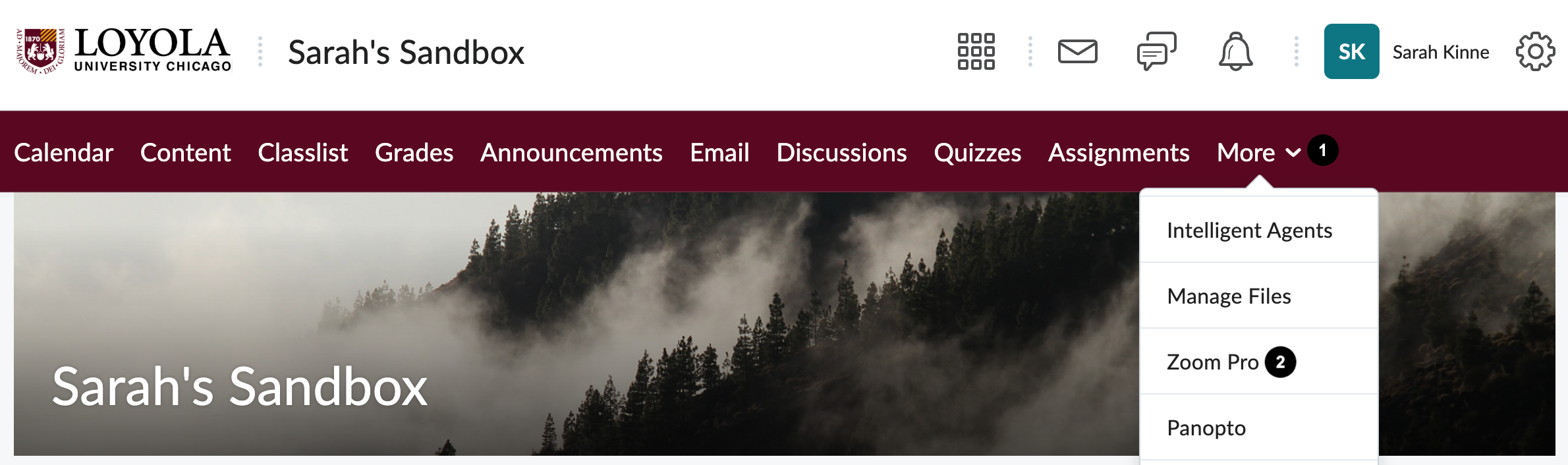
- In your Brightspace course, select More from the Navigation Bar.
- Choose Zoom Pro from the dropdown menu.
Select Meeting Topic.
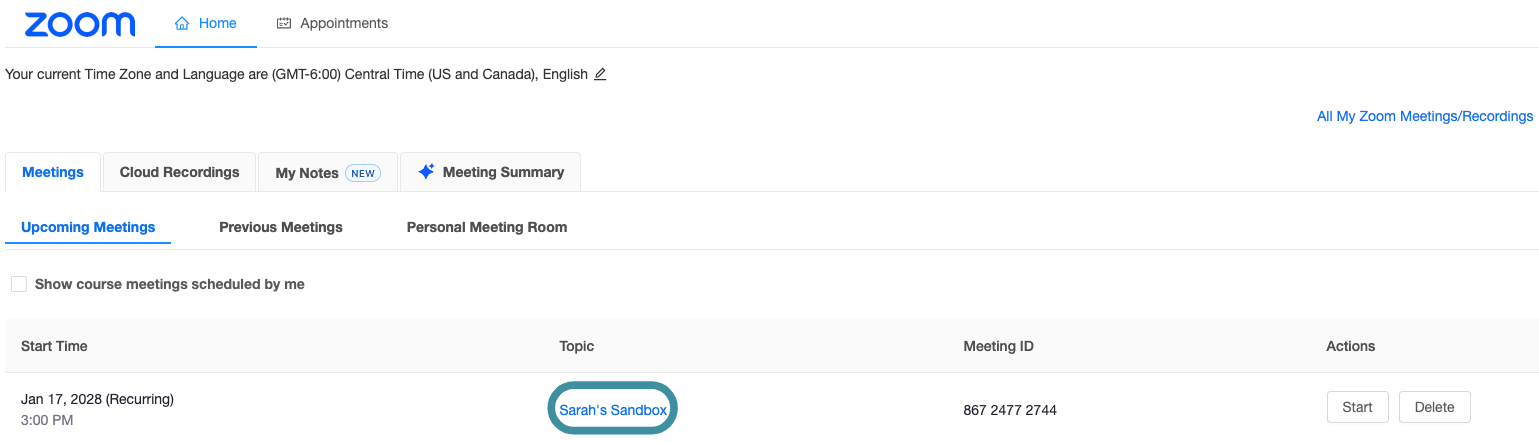
Select the name of the meeting (topic) that you want to edit.
Select Edit this Meeting

Scroll to the bottom of the meeting details and select Edit this Meeting.
Edit and Select Save.
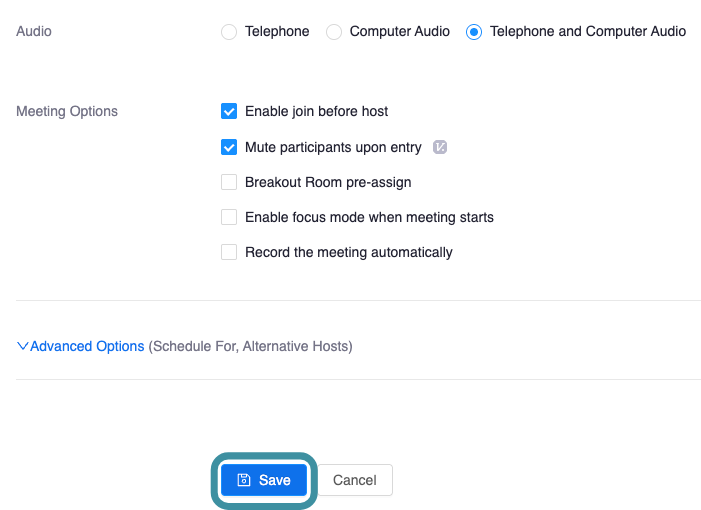
Edit the meeting with the new desired settings and then scroll to the bottom of the meeting details and select Save.
Select Course Meetings.
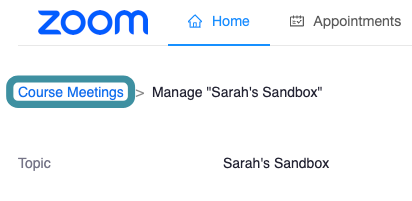
Select the Course Meetings breadcrumb to return to the main Zoom Pro tool page.