Navigate to Course Admin.
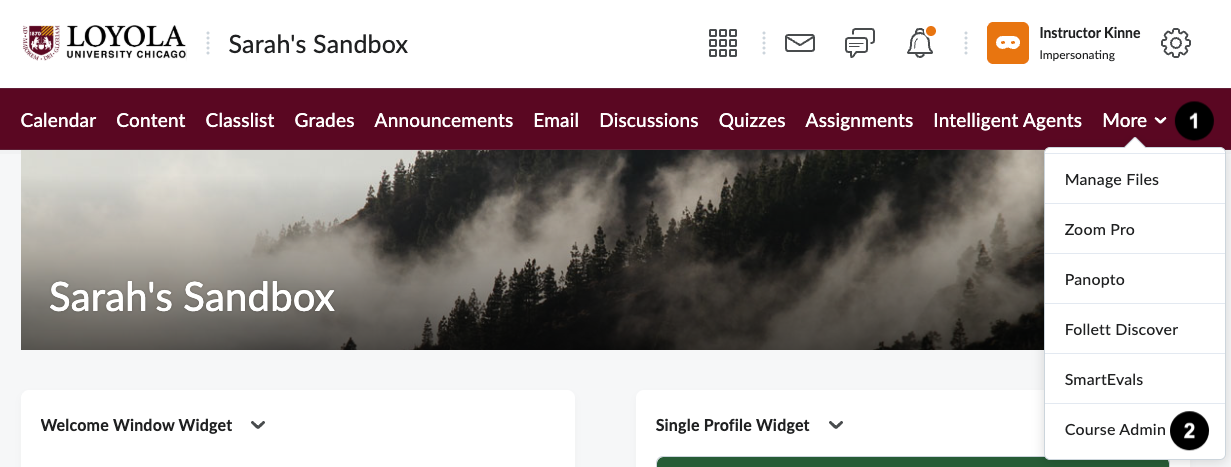
- In your Brightspace course, select More from the Navigation Bar.
- Choose Course Admin from the dropdown menu.
Select Course Offering Information.
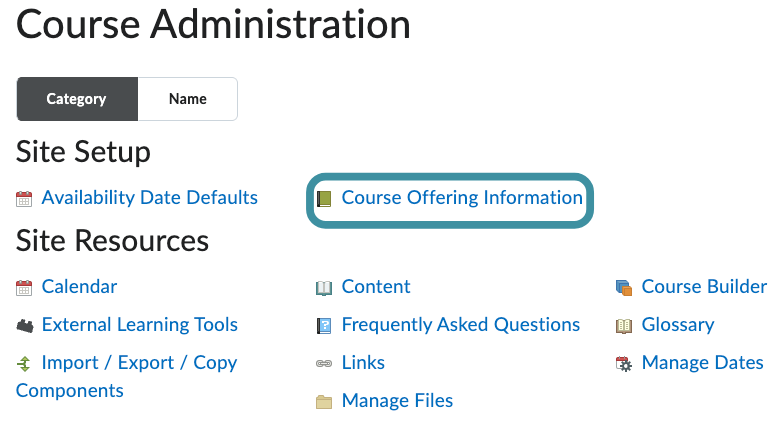
Under Site Setup, select Course Offering Information.
Select the calendar-picker.
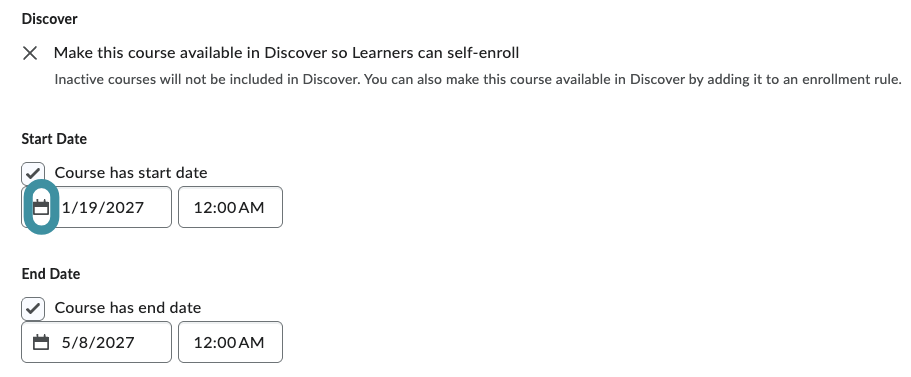
Select the calendar-picker icon to choose a new Start Date, if desired. Optionally, you may also change the course End Date to prolong course access; you may wish to do this to accommodate a student needing extended course access due to taking an incomplete, for example.
Select Save.

Unavailable course appearance. (Learner view)

Courses that are unavailable to students because the start date has not been reached, appear greyed out in the My Courses widget. Students can see that they are enrolled in a greyed out course but cannot visit the course.